/
Reopen a closed check (Win App)
Reopen a closed check (Win App)
- Alger Alama
- Rose Eliff (Unlicensed)
Owned by Alger Alama
Last updated: Oct 12, 2021 by Rose Eliff (Unlicensed)Version comment
A closed check from any business day can be reopened up to 90 days from the date of the check. When a closed check is reopened, the following actions can be taken:
Reopened check - Current business day
- Add a new payment
- Adjust a tip
- Add new items to the check
- User can add items to the same session; these will appear on a new check
- Session will show Reopened Check and new items will appear on Check #2
- Refund items
- Reprint check
- Refund check
Reopened check - Previous business day
- Reprint check
- Refund check
Use Check Search to find check to reopen
- Attach to a location.
- Go to Check Search
- Go to the Location Menu (Either tap Ordering Menu at the top and select Location Menu or swipe right to go to the Location Menu.)

- On the Location Menu, tap Check Search.
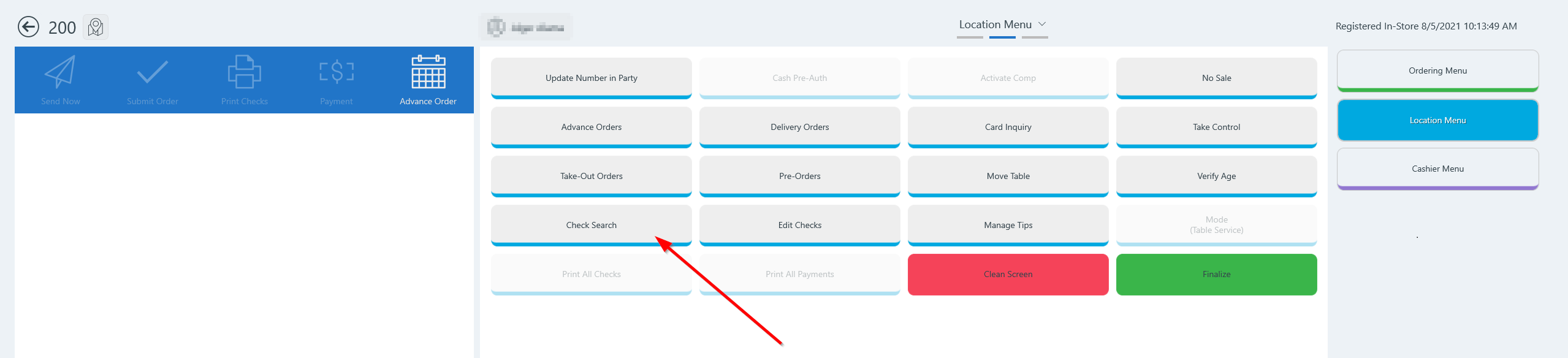
- By default, Check Search displays active and closed checks that have been opened from start of day to now. There is also an advanced search.
- Closed checks have been paid and will display an amount in the Payment column.
- If the closed check is from the current day, it will appear in the check listing.
- If it is from a previous day, use Advanced search to locate the check.
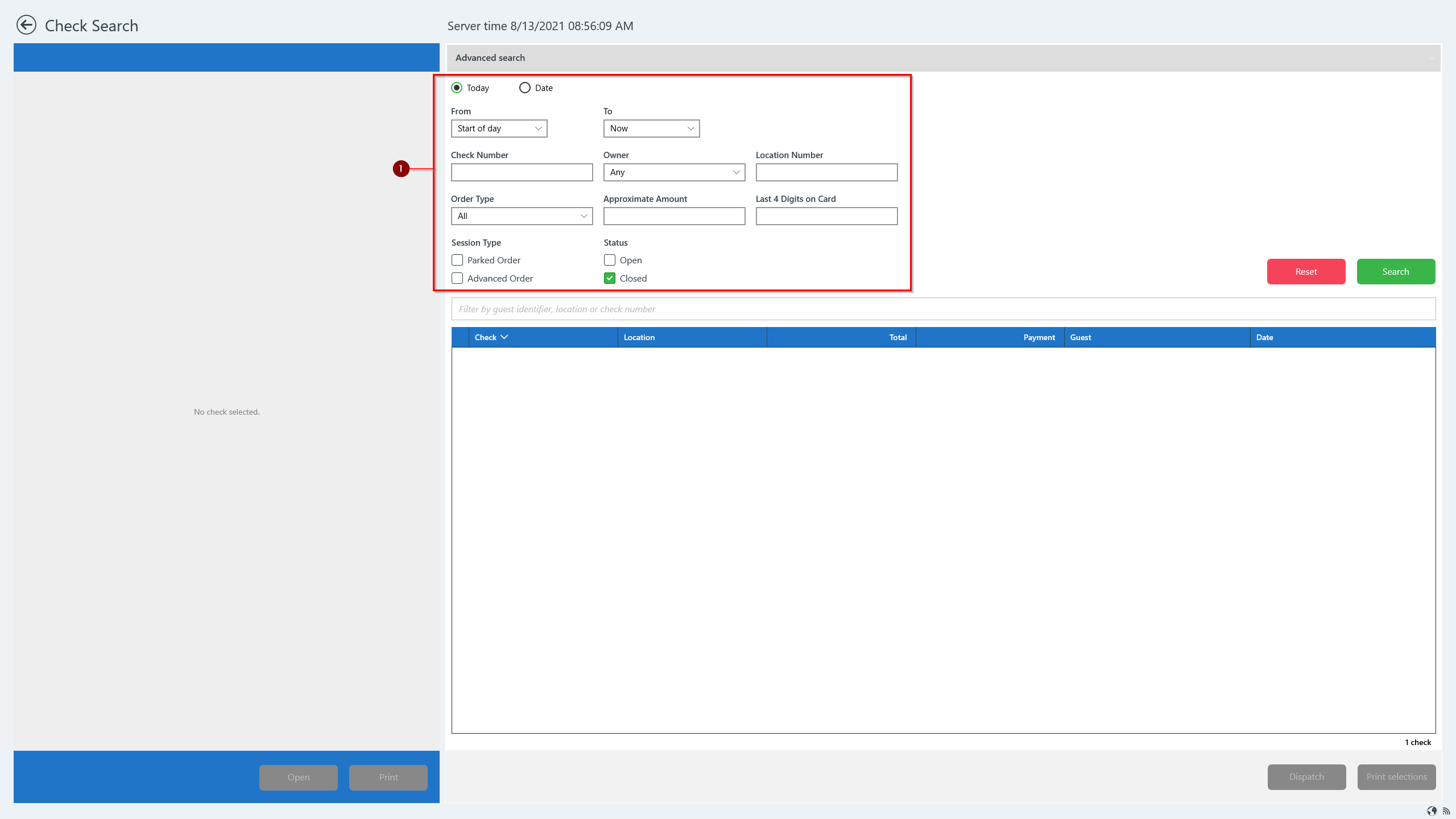
- Tap Advanced search at the top to search by guest identifier, location, check number or other specific criteria.

Advanced search
- Use Advanced search to search for closed checks
- Status: Select Closed
- Complete any other information you know such as date, location, amount of check, etc.
- Tap Search
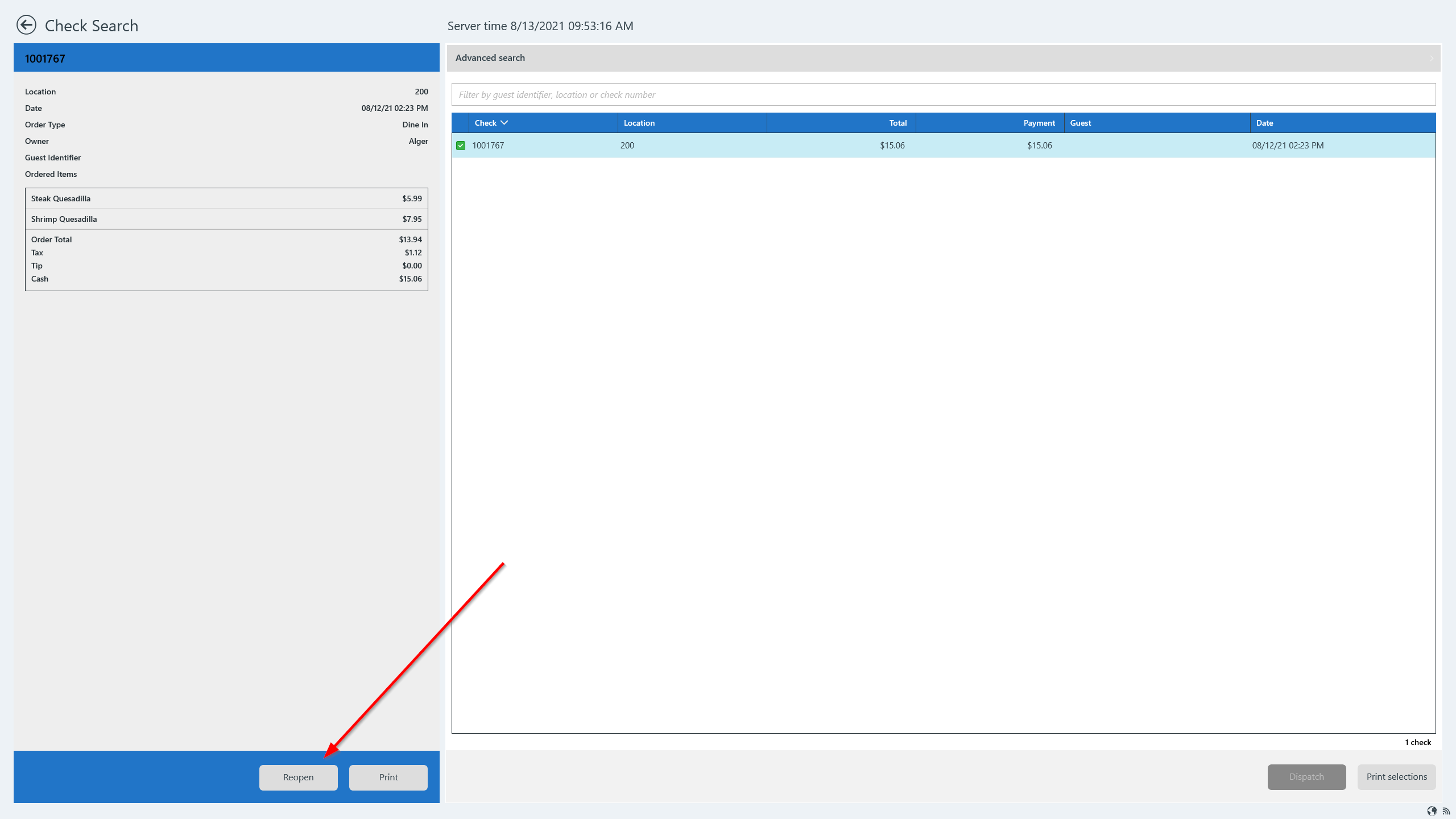
- From the search results, select the desired check to show the check details in the left panel.
- Tap Reopen on the bottom left to reopen the closed check.
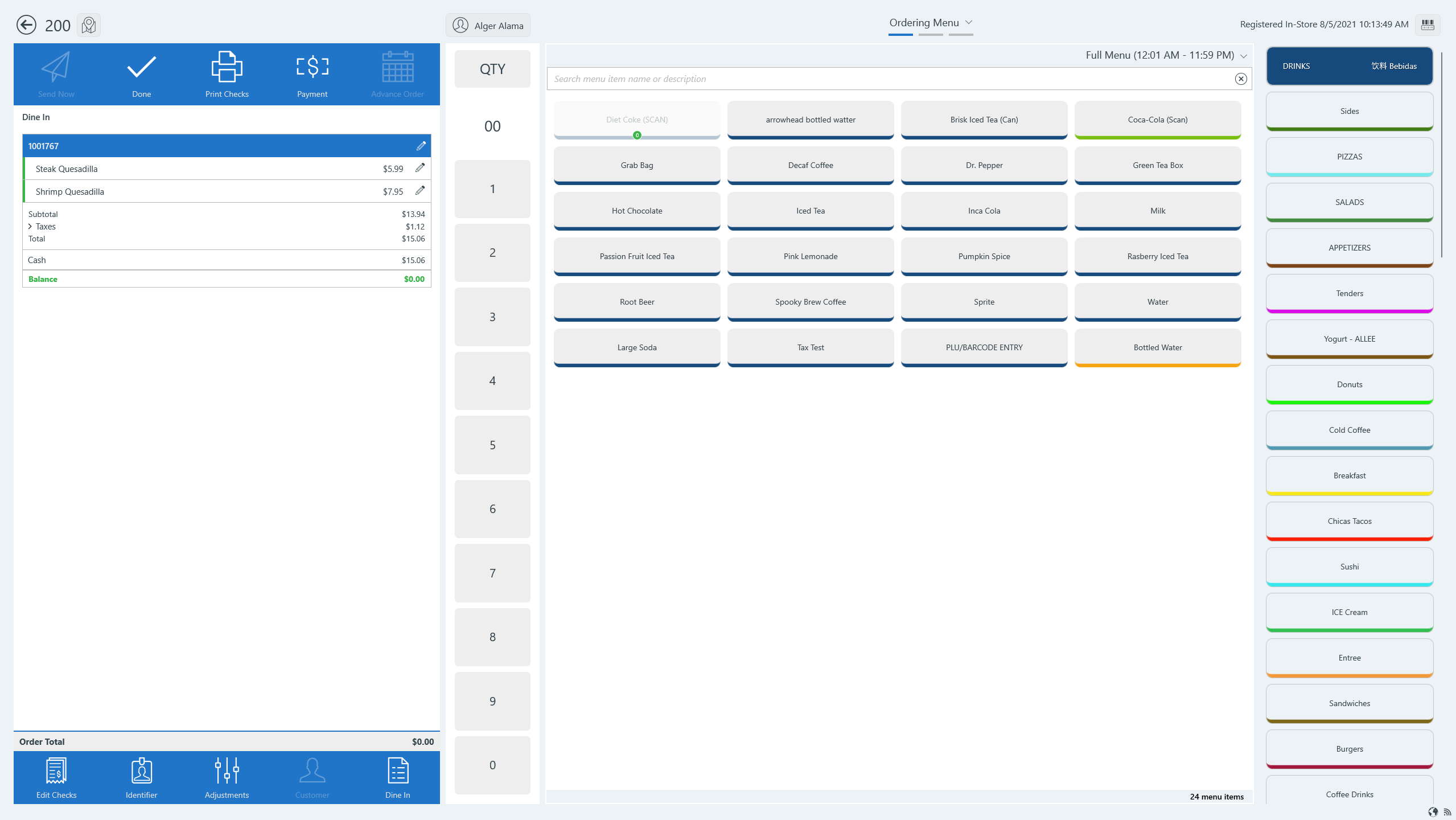
- The reopened check will open to the Ordering Menu where you may add menu items or apply adjustments to the check.
- After making changes, complete payment and finalize the check.
, multiple selections available,
Related content
Credit Card Refund (WinApp)
Credit Card Refund (WinApp)
More like this
Refund a closed check
Refund a closed check
More like this
Site Token Revoke Procedure
Site Token Revoke Procedure
Read with this
Void an item from a check (WinApp)
Void an item from a check (WinApp)
Read with this
Gift Card Inquiry (WinApp)
Gift Card Inquiry (WinApp)
Read with this
Reopen Closed Check
Reopen Closed Check
More like this